
Creating Product Mockups in GIMP With Transparent PNG Images
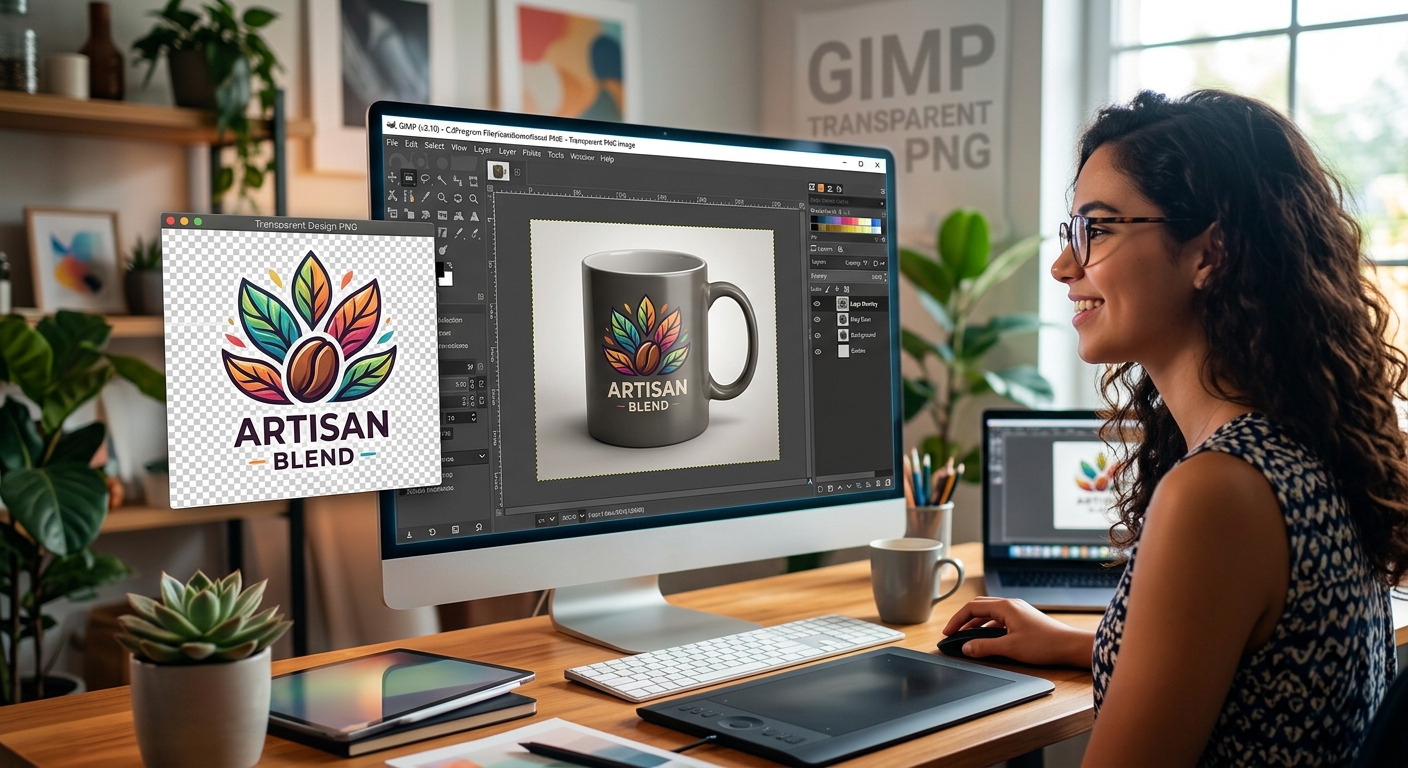
A product can have a perfect cutout and still look pasted onto a background. The usual clues are easy to spot: an awkward size, a mismatched angle, or a shadow that sends the object floating above the surface. In GIMP, you can fix these details with a few separate layers and careful adjustments. This tutorial walks you through placing a cutout product on a background, matching its scale and perspective, and building a shadow that makes it feel grounded.
Your Mockup Game Plan
- Choose a background with a clear surface and matching camera angle.
- Import the product as a separate layer and inspect its transparent edges.
- Scale proportionally before making small perspective changes.
- Build separate contact and cast shadows for better control.
- Save an editable XCF project before exporting the finished image.
Choose a Background That Fits the Product
Start with a simple scene. A plain tabletop, a shelf, or a softly lit studio background makes a useful first project. Busy backgrounds make it harder to judge whether the product fits.
Look for a visible surface where the object can sit. Find the direction of the light, too. Bright areas on the left and shadows extending right suggest light coming from the left. Your product should follow that same pattern.
The camera angle matters before you touch a tool. A product photographed straight ahead will fit a background viewed from a similar height. A background photographed from above usually needs a product image with its top visible.
Perspective editing can reshape an image, but it cannot reveal surfaces the camera never captured. If your product photo shows only the front of a box, stretching its corners will not create a convincing side panel. Choose compatible images at the start.
Open the Background and Save an Editable Project
In GIMP, choose File > Open and select your background image. This becomes the base of the mockup. Rename its layer Background by double-clicking the layer name in the Layers dock.
If the Layers dock is missing, open Windows > Dockable Dialogs > Layers. Keep it visible throughout the project. You will use it to select the product, arrange shadows, and control opacity.
Choose File > Save As and save the project with an .xcf extension. XCF keeps your layers available for later editing. Give the file a useful name, perhaps bottle-tabletop-mockup.xcf.
Work at the dimensions you need for the finished image, with enough resolution to keep the product clear. A 2000-pixel-wide canvas is a reasonable practice size. Avoid enlarging a small product cutout dramatically, since that can make its edges and label look soft.
Plan the Product’s Position Before Importing It
Decide where the product will touch the background. For a bottle on a table, that contact point is the bottom of the bottle. For a pouch lying flat, contact may extend across much of its underside.
Use nearby objects as size references. A mug, notebook, or visible table edge can help you judge whether your product feels believable. Without familiar objects, use the scene’s available space and camera distance as guides.
Leave breathing room around the product. If the mockup will eventually include text, reserve that space now. A centered object works for a simple catalog image. An offset placement can leave room for a headline or price.
Choose the Adjustment That Solves the Problem
| Visible Problem | Useful Adjustment | What to Watch |
|---|---|---|
| Product appears too large or small | Scale the product layer | Keep width and height linked |
| Product leans within the frame | Rotate the product layer | Check vertical edges against the scene |
| Product edges do not follow the scene’s angle | Apply a small perspective adjustment | Avoid stretching labels and logos |
| Product appears to float | Add a contact shadow | Place its darkest area at the base |
Import a Transparent PNG and Check Its Edges
If you need an optional practice asset, choose a transparent PNG with a simple silhouette. A bottle, jar, or box makes the placement and shadow steps easier to follow. Pick an image with lighting that roughly matches your background.
Choose File > Open as Layers and select the product file. It should appear as a new layer above the background. Rename it Product.
Click the eye icon beside the Background layer to hide it temporarily. Transparent areas around the product should reveal GIMP’s checkerboard. If a white rectangle remains visible, that area contains white pixels. A PNG file can support transparency without actually containing transparent pixels.
A checkerboard can also be baked into an image. To check, show the background again and move the product slightly. Genuine transparent areas reveal the background beneath them. A baked checkerboard moves with the product.
Right-click the Product layer and check Add Alpha Channel. If the command is unavailable, the layer already has an alpha channel. Adding one allows transparency, but it does not automatically remove a background.
Inspect the outline at 100% zoom. Look for pale fringes, leftover pixels, and rough corners. For small cleanup jobs, add a layer mask through the layer’s context menu, initialized to white for full opacity. Paint black on the mask to hide unwanted pixels. Paint white to restore areas you hid accidentally.
Scale and Position the Product Layer
Select the Product layer, then choose Layer > Scale Layer. Keep the chain beside width and height linked. Enter a smaller width and let GIMP calculate the matching height.
This scales the product layer independently of the background. Judge the result against nearby objects and the available surface. A product that occupies most of a distant tabletop can look oversized even when its cutout is sharp.
Select the Move tool. In Tool Options, choose the setting that moves the selected layer. Drag the product into position, keeping its base on the intended surface. This setting helps you avoid grabbing the background through a transparent part of the cutout.
If the product needs a slight tilt correction, use the Rotate tool with its transform target set to the layer. Apply a small adjustment and inspect the result. Keep an untouched duplicate hidden if you expect to try several transformations.
Match Perspective Without Distorting the Product
Select the Perspective tool from Tools > Transform Tools > Perspective. In Tool Options, set the transform target to Layer. Confirm that the Product layer is selected.
Click the product to display its transformation handles. Move a corner a small distance and watch the preview. For a rectangular package, compare its edges with lines in the scene. They should suggest a compatible viewing angle.
Keep adjustments modest. Narrowing the top slightly may help a package fit the view, but large changes can squash lettering or make circles look oval. Apply the transformation when the preview looks natural.
Move the product back onto its contact point afterward. Perspective changes can shift the base. If the object still looks wrong after a subtle adjustment, return to the original cutout and reassess the camera angles.
Add a Contact Shadow Beneath the Product
A contact shadow is the small, darker area where the product meets the surface. It gives the object weight. Create it before building a longer shadow.
Choose Layer > New Layer, name it Contact Shadow, and set its fill to transparency. Place it below Product and above Background in the Layers dock.
Use the Ellipse Select tool to draw a shallow oval beneath the product’s base. Its width should roughly match the contact area. Choose a dark neutral foreground color and fill the selection through Edit > Fill with FG Color.
Choose Select > None, then apply Filters > Blur > Gaussian Blur. Increase the blur until the edge softens, while keeping a darker center close to the base.
Lower the layer opacity until the shadow fits the scene. Try 30% as a starting point and adjust by eye. The darkest part should sit directly beneath the product, with no bright gap between the base and its shadow.
Build a Cast Shadow That Follows the Light
The cast shadow extends away from the product in the direction opposite the light. For a simple upright product, you can build it from the cutout’s silhouette.
Right-click Product and choose Alpha to Selection. Create a transparent layer named Cast Shadow. Place it above Background and below Contact Shadow. With Cast Shadow selected, fill the selection using a dark foreground color, then choose Select > None.
You now have a separate silhouette. Use the Scale tool with its target set to Layer and its proportions unlinked to compress the silhouette vertically. Use the Perspective tool to shape it along the surface. Keep the silhouette’s base beneath the product and extend its far end away from the light source.
For light coming from the upper left, direct the shadow toward the lower right. Keep its length consistent with other shadows in the background. A tall object does not always need a long shadow; the light’s position affects the result.
Apply Gaussian Blur and reduce opacity. The cast shadow will usually be softer and lighter than the contact shadow. A 15% to 30% opacity range can provide a starting point, but the background should guide the final setting.
If the far end looks too dark, add a white layer mask to Cast Shadow. Paint gently over that end with a soft black brush at low opacity. This fades the shadow while preserving its stronger connection near the product.
Match the Finish and Inspect the Mockup
Select Product and make small adjustments with Colors > Levels or Colors > Curves if its brightness differs from the background. Avoid crushing dark packaging details or washing out the label.
A warm room may need a slightly warmer product image. Use Colors > Color Balance sparingly. Check the whole composition after each change rather than judging the product alone.
- Check that the product base touches the surface without a visible gap.
- Compare the product’s highlights with the shadow direction.
- Inspect the outline for white fringes and leftover background pixels.
- Make sure perspective changes have kept label text readable.
- View the mockup at its intended display size to judge overall realism.
Inspect both at 100% zoom and with the image fitted in the window. Close inspection catches edge problems. The wider view reveals an oversized product, an excessive shadow, or a lighting mismatch.
Save a Mockup You Can Reuse
Save the XCF project again before exporting. Keep Product, Contact Shadow, Cast Shadow, and Background separate. That arrangement makes later changes easier, especially if you replace the background or revise the product’s position.
Choose File > Export As to create the finished image. Use PNG when you want lossless output or need to preserve transparent areas. Use JPEG when a smaller photographic file is more useful and transparency is unnecessary.
Open the exported file and check its dimensions, edges, and shadow appearance. Your mockup is ready when the product feels settled into the scene: its size fits, its angle makes sense, and its shadows agree with the light.
Explore on GIMP.cc
Step-by-step GIMP guides for every skill level.
Resize, compress, convert, and check images online.
Answers to the most common GIMP questions.
Share this article: